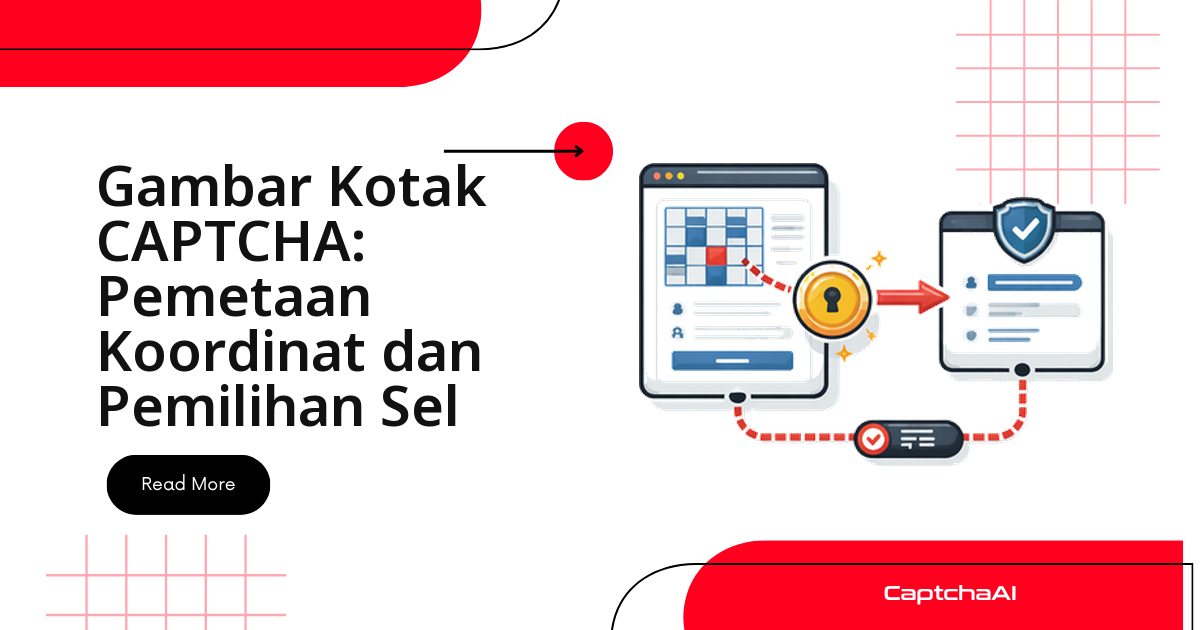
CaptchaAI menyelesaikan grid image CAPTCHA — jenis reCAPTCHA v2 yang meminta Anda "Pilih semua kotak dengan lampu lalu lintas" pada grid 3×3 atau 4×4 — dan mengembalikan daftar indeks sel seperti [1, 3, 6, 9]. Masalahnya, Selenium dan Puppeteer tidak bisa mengklik "sel nomor 6"; keduanya butuh koordinat piksel. Panduan ini menutup celah itu: mengambil gambar grid, mengubah indeks sel menjadi titik klik, lalu menekan tombol verifikasi.
Bagi tim data dan freelancer scraping di Indonesia, image challenge ini sering muncul di alur pemantauan harga dan form login. Alih-alih menyerah pada tantangan gambar, Anda cukup mengirim gambarnya ke API, membaca indeks yang kembali, dan menerjemahkannya menjadi klik pada tile yang benar.
Semua contoh di bawah memakai staging.example.com sebagai target agar Anda bisa menguji alurnya di lingkungan sendiri.
Kenapa CaptchaAI mengembalikan indeks sel, bukan koordinat
Solver hanya melihat gambar grid, bukan halaman yang Anda render. Karena itu jawaban yang paling stabil adalah nomor sel — "tile ke berapa yang cocok dengan instruksi" — bukan pasangan piksel (x, y). Ukuran grid di layar bisa berbeda-beda: 300×300 piksel pada desktop, lebih kecil pada tampilan mobile, atau berubah saat pengguna melakukan zoom.
Dengan mengembalikan indeks 1-based, CaptchaAI membiarkan sisi browser yang menghitung koordinat sesuai ukuran grid saat itu juga. Anda cukup membaca dimensi elemen grid pada runtime, lalu memetakan tiap indeks ke titik tengah selnya. Pendekatan ini jauh lebih tahan terhadap perbedaan resolusi dibandingkan koordinat yang dipatok di server.
Ukuran grid dan urutan penomoran sel
reCAPTCHA memakai dua ukuran grid standar; selnya dinomori mengikuti urutan baca — kiri ke kanan, atas ke bawah:
3×3 Grid:          4×4 Grid:
1  2  3            1   2   3   4
4  5  6            5   6   7   8
7  8  9            9  10  11  12
                   13  14  15  16
Konvensi penomoran inilah yang dipakai CaptchaAI saat mengembalikan indeks. Karena rumus koordinat di Langkah 3 memakai jumlah kolom dan baris sebagai parameter, satu fungsi yang sama bisa menangani kedua ukuran tanpa cabang logika terpisah.
Empat langkah dari gambar grid ke klik terverifikasi
Alur penyelesaiannya mengikuti pola yang sama dengan tugas CaptchaAI lain — kirim, simpan task ID, polling, lalu pakai hasil:
- Ambil gambar grid dan teks instruksinya dari iframe tantangan.
- Kirim gambar ke CaptchaAI, simpan task ID, dan polling hingga indeks sel siap.
- Petakan tiap indeks sel ke koordinat piksel di dalam grid.
- Klik sel-sel tersebut lalu tekan tombol verifikasi.
Empat bagian berikutnya membahas tiap langkah dengan kode Python dan Node.js.
Langkah 1: ambil gambar grid dari iframe reCAPTCHA
Image challenge hidup di iframe terpisah dari halaman utama. Pindah ke frame tantangan, ambil elemen gambar grid, baca teks instruksinya, lalu tentukan ukuran grid dari nama class-nya (rc-image-tile-33 untuk 3×3, rc-image-tile-44 untuk 4×4).
Python (Selenium)
import base64
from selenium import webdriver
from selenium.webdriver.common.by import By
from selenium.webdriver.support.ui import WebDriverWait
from selenium.webdriver.support import expected_conditions as EC

driver = webdriver.Chrome()
driver.get("https://example.com/form")

# Wait for reCAPTCHA iframe
WebDriverWait(driver, 10).until(
    EC.presence_of_element_located((By.CSS_SELECTOR, "iframe[src*='recaptcha']"))
)

# Switch to challenge iframe
iframes = driver.find_elements(By.CSS_SELECTOR, "iframe[src*='recaptcha']")
challenge_iframe = iframes[-1]  # Challenge iframe is typically the last one
driver.switch_to.frame(challenge_iframe)

# Get the grid image
grid_img = driver.find_element(By.CSS_SELECTOR, "img.rc-image-tile-33, img.rc-image-tile-44")
img_src = grid_img.get_attribute("src")

# Get instruction text
instruction = driver.find_element(
    By.CSS_SELECTOR, ".rc-imageselect-desc-wrapper"
).text
print(f"Instruction: {instruction}")

# Screenshot the grid as base64
img_b64 = grid_img.screenshot_as_base64

# Determine grid size
classes = grid_img.get_attribute("class")
grid_size = "4x4" if "44" in classes else "3x3"
print(f"Grid size: {grid_size}")

driver.switch_to.default_content()
Screenshot elemen gambar langsung, jangan mengunduh dari atribut src, agar yang Anda kirim persis sama dengan yang dilihat pengguna.
JavaScript (Puppeteer)
const puppeteer = require('puppeteer');
const fs = require('fs');

const browser = await puppeteer.launch({ headless: false });
const page = await browser.newPage();
await page.goto('https://example.com/form');

// Find the challenge iframe
const frames = page.frames();
const challengeFrame = frames.find(f => f.url().includes('recaptcha'));

// Get instruction
const instruction = await challengeFrame.$eval(
  '.rc-imageselect-desc-wrapper',
  el => el.textContent.trim()
);

// Screenshot the grid image
const gridImg = await challengeFrame.$('img.rc-image-tile-33, img.rc-image-tile-44');
const imgBuffer = await gridImg.screenshot();
const imgBase64 = imgBuffer.toString('base64');

// Determine grid size
const className = await challengeFrame.$eval(
  'img.rc-image-tile-33, img.rc-image-tile-44',
  el => el.className
);
const gridSize = className.includes('44') ? '4x4' : '3x3';
console.log(`Grid: ${gridSize}, Instruction: ${instruction}`);
Langkah 2: kirim grid ke CaptchaAI dan polling hasilnya
Sederhanakan teks instruksi menjadi kata kunci (misalnya "traffic lights"), kirim gambar ke endpoint in.php dengan grid_size dan img_type=recaptcha, simpan task ID, lalu polling res.php hingga indeks sel siap.
import requests
import time
import json

API_KEY = "YOUR_API_KEY"

# Parse the instruction to a simple keyword
# "Select all images with traffic lights" → "traffic lights"
import re
keyword_match = re.search(r'(?:with|of|containing)\s+(.+?)\.?$', instruction, re.I)
keyword = keyword_match.group(1) if keyword_match else instruction

# Submit
with open("/tmp/grid.png", "wb") as f:
    f.write(base64.b64decode(img_b64))

with open("/tmp/grid.png", "rb") as f:
    resp = requests.post("https://ocr.captchaai.com/in.php",
        files={"file": f},
        data={
            "key": API_KEY,
            "method": "post",
            "grid_size": grid_size,
            "img_type": "recaptcha",
            "instructions": keyword,
            "json": "1",
        }
    ).json()

if resp["status"] != 1:
    raise Exception(f"Submit error: {resp['request']}")

task_id = resp["request"]

# Poll
for _ in range(20):
    time.sleep(5)
    result = requests.get("https://ocr.captchaai.com/res.php", params={
        "key": API_KEY, "action": "get", "id": task_id, "json": "1"
    }).json()

    if result["status"] == 1:
        cells = json.loads(result["request"])
        print(f"Cells to click: {cells}")  # e.g., [1, 3, 6, 9]
        break
    if result["request"] != "CAPCHA_NOT_READY":
        raise Exception(f"Error: {result['request']}")
Respons CAPCHA_NOT_READY berarti hasil belum siap — cukup polling lagi. Jeda 5 detik pada loop ini aman untuk sebagian besar kondisi jaringan, termasuk deploy di region Jakarta (ap-southeast-3) atau Singapura (ap-southeast-1).
Langkah 3: petakan indeks sel ke koordinat piksel
Inti panduan: ubah indeks 1-based menjadi titik tengah tiap sel. Bagi lebar dan tinggi grid dengan jumlah kolom dan baris, lalu hitung pusat sel dari baris dan kolom yang diturunkan dari indeks.
def cell_to_coordinates(cell_index, grid_size, grid_width, grid_height):
    """Convert a 1-based cell index to (x, y) center coordinates."""
    if grid_size == "3x3":
        cols, rows = 3, 3
    else:
        cols, rows = 4, 4

    cell_w = grid_width / cols
    cell_h = grid_height / rows

    # Convert 1-based index to 0-based row/col
    idx = cell_index - 1
    col = idx % cols
    row = idx // cols

    # Center of the cell
    x = col * cell_w + cell_w / 2
    y = row * cell_h + cell_h / 2

    return int(x), int(y)

# Example: grid is 300×300
for cell in cells:
    x, y = cell_to_coordinates(cell, grid_size, 300, 300)
    print(f"Cell {cell} → ({x}, {y})")
Untuk grid 3×3 berukuran 300×300, hasilnya adalah titik tengah tiap sel:
Cell 1 → (50, 50)
Cell 3 → (250, 50)
Cell 6 → (250, 150)
Cell 9 → (250, 250)
Fungsi ini menerima lebar dan tinggi grid sebagai argumen, bukan nilai tetap — di langkah berikutnya Anda akan membaca dimensi nyata elemen grid.
Langkah 4: klik sel dan kirim verifikasi
Kembali ke iframe tantangan, baca ukuran nyata elemen grid, lalu klik pada offset relatif terhadap pusatnya. Setelah semua sel diklik, tekan tombol verifikasi.
Selenium
from selenium.webdriver.common.action_chains import ActionChains

driver.switch_to.frame(challenge_iframe)

# Get grid element position and size
grid_el = driver.find_element(By.CSS_SELECTOR, ".rc-imageselect-target")
grid_rect = grid_el.rect
grid_w = grid_rect["width"]
grid_h = grid_rect["height"]

actions = ActionChains(driver)

for cell in cells:
    x, y = cell_to_coordinates(cell, grid_size, grid_w, grid_h)
    # Click relative to grid element's top-left corner
    actions.move_to_element_with_offset(
        grid_el,
        x - grid_w / 2,  # offset from center
        y - grid_h / 2
    ).click()

actions.perform()

# Click verify
verify_btn = driver.find_element(By.ID, "recaptcha-verify-button")
verify_btn.click()

driver.switch_to.default_content()
Puppeteer
// Click each cell by index
const tableRows = await challengeFrame.$$('table.rc-imageselect-table tr');
for (const cellIdx of cells) {
  const row = Math.floor((cellIdx - 1) / (gridSize === '4x4' ? 4 : 3));
  const col = (cellIdx - 1) % (gridSize === '4x4' ? 4 : 3);
  const cell = (await tableRows[row].$$('td'))[col];
  await cell.click();
  await new Promise(r => setTimeout(r, 200));
}

await challengeFrame.click('#recaptcha-verify-button');
Kedua pendekatan valid. Versi Selenium mengklik berdasarkan offset piksel dari pusat grid, sedangkan versi Puppeteer mengklik langsung sel td per baris dan kolom — lebih tahan terhadap perubahan ukuran.
Menangani tile dinamis yang berganti setelah diklik
Sebagian grid reCAPTCHA v2 mengganti tile yang baru diklik dengan gambar baru, jadi satu penyelesaian tidak selalu cukup. Bungkus alurnya dalam retry loop yang mengambil ulang grid, menyelesaikannya, lalu memeriksa apakah tantangan sudah hilang:
def solve_with_dynamic_tiles(driver, api_key, max_rounds=3):
    for round_num in range(max_rounds):
        driver.switch_to.frame(challenge_iframe)

        # Re-capture grid and instruction
        img_b64 = driver.find_element(
            By.CSS_SELECTOR, "img.rc-image-tile-33"
        ).screenshot_as_base64

        # Submit and get cells (same as above)
        cells = submit_and_poll(api_key, img_b64, "3x3", keyword)

        if not cells:
            break

        # Click cells
        click_cells(driver, cells, "3x3")

        # Click verify
        driver.find_element(By.ID, "recaptcha-verify-button").click()

        driver.switch_to.default_content()
        time.sleep(2)

        # Check if solved (no more challenge iframe)
        try:
            driver.switch_to.frame(challenge_iframe)
            driver.switch_to.default_content()
        except Exception:
            return True  # Solved

    return False
Batasi max_rounds agar loop tidak berjalan tanpa henti pada grid yang terus berganti. Dari sisi biaya ini aman: CaptchaAI menagih per thread konkuren dengan penyelesaian tak terbatas per thread, jadi round tambahan tidak menambah biaya per solve — yang membatasi hanya jumlah thread pada paket Anda.
Tips menjaga akurasi pemilihan sel
Beberapa hal kecil membedakan alur yang stabil dari yang sering meleset:
- Kirim gambar asli. Jangan crop atau mengompres sebelum mengirim — potongan gambar menghilangkan konteks yang dipakai solver.
- Pastikan
grid_sizebenar. Salah menandai grid 4×4 sebagai 3×3 membuat indeks tidak sinkron dengan tile di layar. - Baca dimensi grid pada runtime. Ambil
grid_el.rectsesaat sebelum mengklik, bukan nilai yang di-hardcode. - Beri jeda singkat antar klik. Jeda 200 ms seperti pada contoh Puppeteer membantu reCAPTCHA memproses tiap klik.
Menyusun grid solving ke dalam pipeline scraping
Dalam pipeline nyata, penyelesaian grid biasanya menjadi satu langkah kecil di antara navigasi halaman dan pengambilan data. Bungkus Langkah 1–4 dalam satu fungsi solve_grid(driver) yang mengembalikan True bila terverifikasi, lalu panggil hanya ketika iframe tantangan benar-benar muncul — bukan pada setiap request.
Untuk pekerjaan pemantauan harga yang umum di komunitas scraping Indonesia, pola ini menjaga worker tetap ringan: satu thread menangani satu tantangan, dan Anda menaikkan jumlah thread hanya saat volume naik. Pastikan pula Anda hanya memproses data yang memang boleh diolah — UU Pelindungan Data Pribadi (UU 27/2022) menjadikan prinsip ini relevan.
Pemecahan masalah umum
| Masalah | Penyebab | Solusi |
|---|---|---|
| Sel yang salah dikembalikan | grid_size salah |
Periksa apakah grid 3×3 atau 4×4 |
| Klik meleset sel | Offset koordinat salah | Verifikasi dimensi elemen grid |
ERROR_WRONG_FILE_EXTENSION |
Format gambar tidak didukung | Gunakan PNG atau JPEG |
| Tile baru muncul setelah diklik | Dynamic grid | Selesaikan ulang setiap round |
Pertanyaan umum
Bagaimana cara mengetahui grid 3×3 atau 4×4?
Baca nama class elemen gambar: rc-image-tile-33 menandai grid 3×3, rc-image-tile-44 menandai grid 4×4. Nilai inilah yang dikirim sebagai parameter grid_size dan menentukan rentang indeks yang dikembalikan.
Apakah tile dinamis menambah biaya penyelesaian?
Tidak per solve. CaptchaAI memakai pricing berbasis thread dengan penyelesaian tak terbatas per thread, jadi round tambahan pada grid dinamis tidak dikenai biaya per gambar — yang membatasi hanya jumlah thread konkuren pada paket Anda.
Format gambar apa yang harus dikirim?
PNG atau JPEG, kirim gambar grid asli tanpa crop atau kompresi. Memotong atau memperkecil gambar justru menurunkan akurasi pemilihan sel.
Berapa lama waktu penyelesaian grid image?
Umumnya beberapa detik, tergantung ukuran gambar dan beban antrean. Polling tiap 5 detik seperti pada contoh sudah cukup; perbesar jeda hanya jika Anda memproses banyak task sekaligus.
Perlukah menghitung ulang koordinat jika ukuran grid di layar berubah?
Ya. Selalu baca dimensi elemen grid pada runtime lalu jalankan ulang cell_to_coordinates. Indeks sel yang sama tetap valid, tetapi koordinat pikselnya berubah mengikuti ukuran render.